Connecting accounts
How accounts connect, what each status means, and how working hours, limits, reconnecting and removal work.
A connected account is one identity on one channel: a LinkedIn profile, an Instagram account, a WhatsApp number, a Telegram account or a Facebook profile. Campaigns send from connected accounts, and the inbox shows their conversations. Each connected account takes one seat.
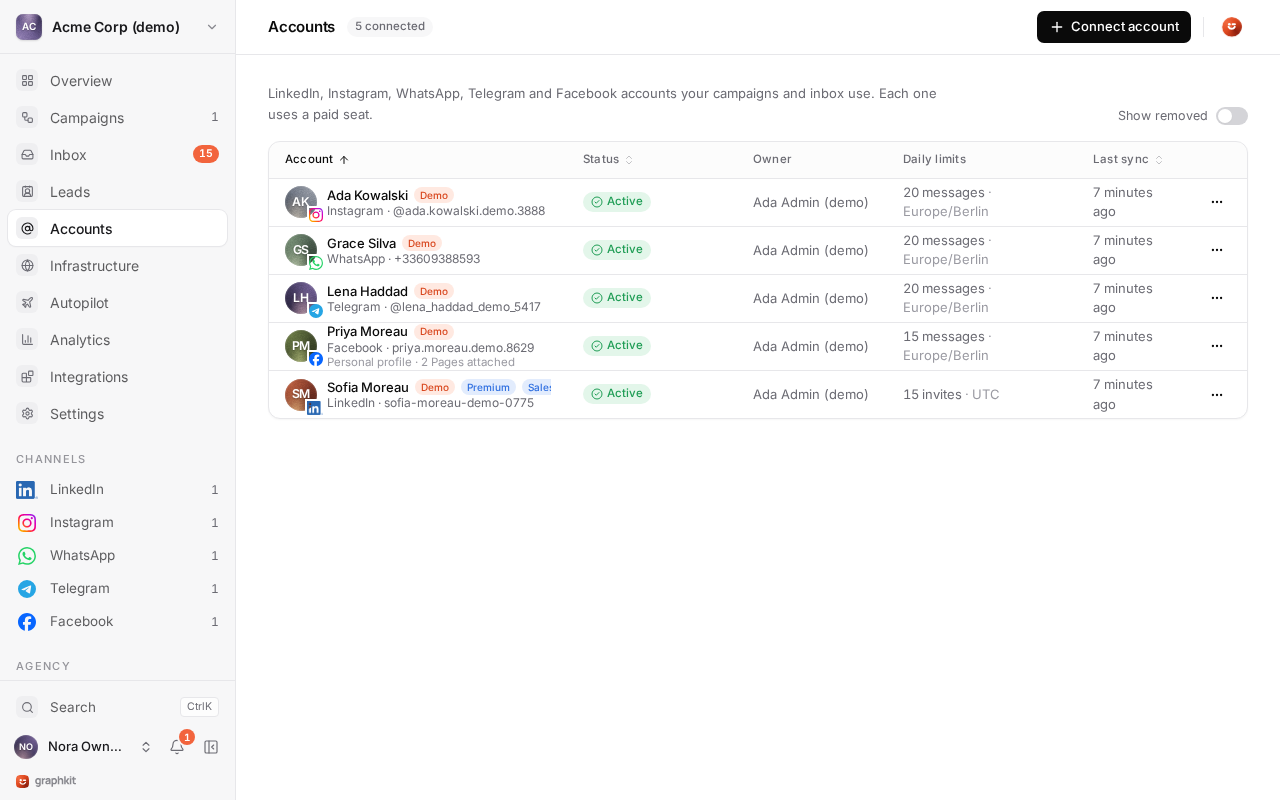
Channel details are on their own pages: LinkedIn, Instagram, WhatsApp, Telegram and Facebook.
Connect an account
You need a role that can connect accounts (client admin, agency manager or owner) and a free seat in the workspace.
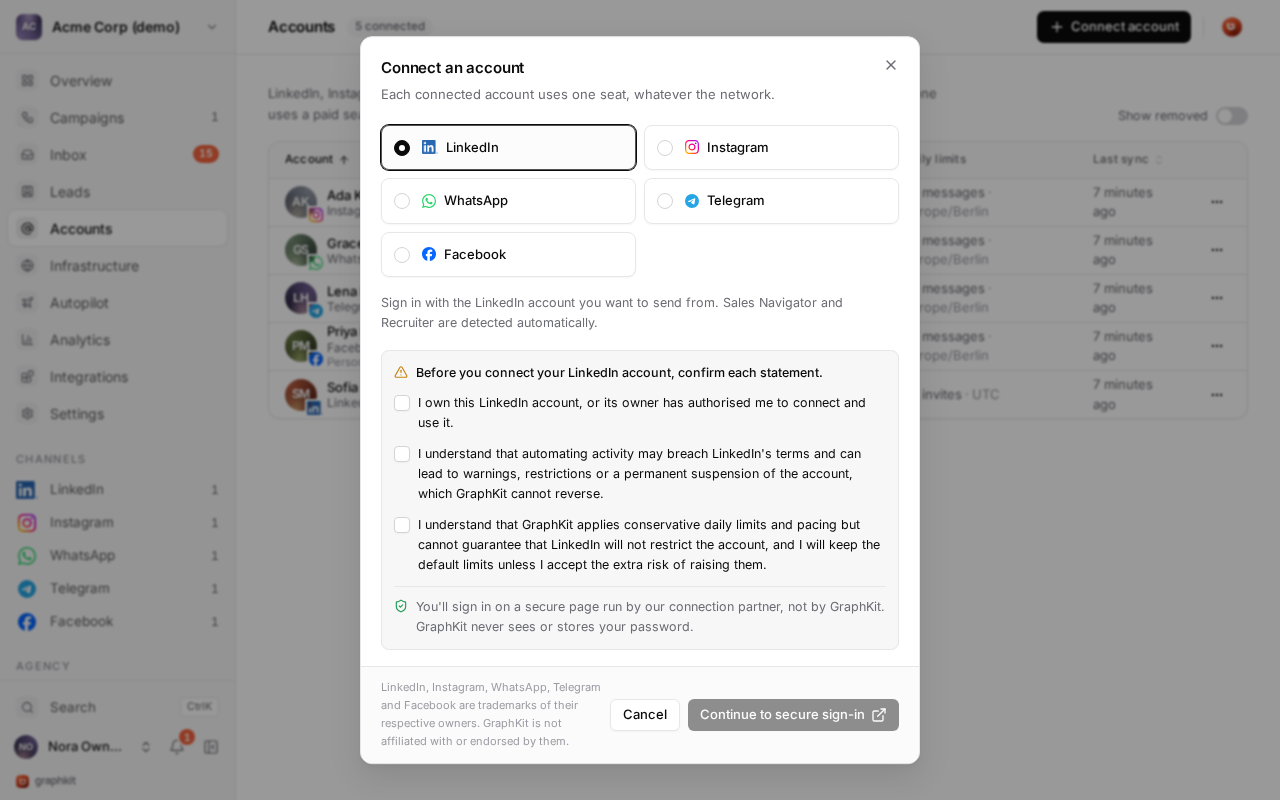
- Open Accounts, choose Connect an account and pick the channel.
- Confirm the statements shown for that channel. They are required checkboxes, and connecting is refused without them.
- Sign in on the connection screen. It is run by GraphKit's connection partner and is shown as a third-party page; GraphKit never receives your password, and no social credentials, cookies or tokens are stored by GraphKit. The link is valid for 1 hour.
- You return to GraphKit. The account shows Waiting for confirmation and turns Active when the network confirms the session.
The account owner connects their own account, in their own session. If you run outbound for someone else, invite them to the workspace and let them connect.
The connect statements
Before every connect and reconnect, the owner confirms:
- They own the account, or its owner has authorised them to connect and use it.
- Automating activity may breach the network's terms and can lead to warnings, restrictions or a permanent suspension, which GraphKit cannot reverse.
- GraphKit applies conservative daily limits and pacing but cannot guarantee that the network will not restrict the account, and they will keep the default limits unless they accept the extra risk of raising them.
- On WhatsApp, Telegram and Facebook only: they will message only people who already have a conversation with them or who agreed to hear from them, and will not send bulk or cold messages.
Each confirmation is written to the workspace audit log with the user, channel, the exact statements and their version, the time, IP address and user agent. When the wording changes, the next connect or reconnect asks again.
When a connection does not finish
| What you see | Why | What to do |
|---|---|---|
| Removed, duplicate identity | This profile is already connected in this or another workspace. One identity can belong to one workspace at a time. | Remove it from the other workspace first, or move it there. |
| Removed, no free seat | The last seat was taken before the network confirmed. | Buy a seat or free one, then connect again. |
| Removed, connect abandoned | The connection screen was closed, refused or not finished within 2 hours. | Connect again. |
A failed or abandoned connection frees its seat, and a duplicate is unlinked so it costs nothing.
Statuses
| Status | Meaning | Takes a seat |
|---|---|---|
connecting | The connection screen is open. | Yes |
active | Connected and usable. | Yes |
reconnect_required | The network ended the session (expired, password changed, checkpoint). The owner must reconnect. Campaigns using it wait. | Yes |
restricted | The network restricted the account. Campaigns using it wait. | Yes |
paused | Paused by you, or by GraphKit's auto-pause. Campaigns skip it. | Yes |
disconnected | Disconnected by you, or a temporary outage at the connection partner that resolves without you. | No |
removed | Removed from the workspace. History stays. | No |
Every status that needs you comes with a reason and a sentence saying what to do. Account problems also appear as alerts on the Dashboard, and as the account.reconnect_required and account.disconnected webhooks.
Working hours and time zone
Each account has a time zone and weekly working hours, for example Monday to Friday 09:00 to 17:00 in Europe/London. Campaign actions run only when the campaign schedule and the account's working hours are both open. A window must end after it starts; to cover hours past midnight, add two windows.
The account's time zone also decides its quota day: daily limits reset at local midnight.
Daily and weekly limits
Each account has a daily limit per action and, on LinkedIn, a weekly invitation limit. The defaults are conservative. You can lower them, or raise them up to a hard maximum; a value above the maximum is saved at the maximum and you see a warning. Limits apply across every campaign that uses the account, so two campaigns on one account share its daily allowance. The full table is in limits and ceilings.
A daily limit of 0 turns that action off for the account.
Reconnecting
When an account shows Reconnect required, open it and choose Reconnect. You confirm the statements again and sign in on the connection screen. The account keeps its history, campaigns, limits and inbox; campaigns continue where they waited.
Reconnect also works after a disconnect, when the account needs a fresh connection: GraphKit checks for a free seat first.
Pause, disconnect and remove
| Action | Effect |
|---|---|
| Pause | Campaigns skip the account until you resume. The inbox keeps syncing. The seat stays in use. |
| Disconnect | Unlinks the session and frees the seat. The account and its history stay, and you can reconnect later. |
| Remove | Unlinks the session, frees the seat and releases the identity so it can connect elsewhere. History stays on the removed account. |
In an organization with several workspaces, an account can be moved to another workspace of the same organization. The move needs a free seat in the target workspace.
Inbox sync and privacy
When an account connects, GraphKit imports its conversations from the last 90 days, newest first, and then catches up every 15 minutes in addition to real-time updates. Each account has an inbox privacy setting that decides who in the workspace can read its conversations. See Private conversations.