Unified inbox
Read and answer every conversation of every connected account in one inbox, with filters, assignment, labels, notes, saved replies, snooze, scheduled send, AI drafts, exports, a command menu, privacy and opt-outs.
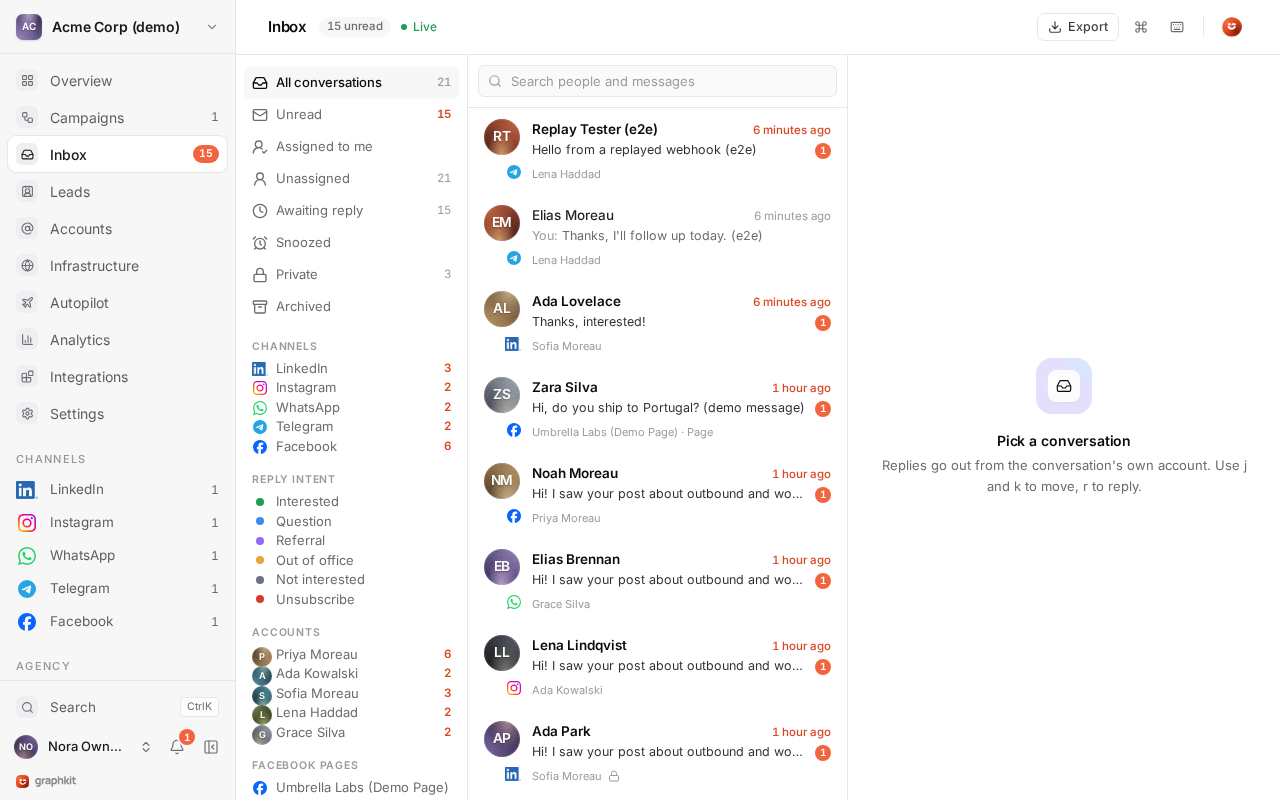
The inbox holds every conversation of every connected account in the workspace: LinkedIn (including Sales Navigator and Recruiter inboxes), Instagram, WhatsApp, Telegram, Facebook profiles and Facebook Pages. New messages appear live, for everyone looking at the inbox.
Sync
When an account connects, GraphKit imports its conversations from the last 90 days. After that, new messages arrive in real time, and every account is also re-read every 15 minutes so nothing is missed if the network is slow to report a message. Messages you send from your phone or the network's own app appear too.
Views and filters
The left side has saved views with live counts:
| View | Shows |
|---|---|
| All | Every conversation you can see, except archived ones. |
| Unread | Conversations with unread messages. |
| Assigned to me | Conversations assigned to you. |
| Unassigned | Conversations nobody owns. |
| Awaiting reply | The lead wrote last and nobody has answered. |
| Snoozed | Conversations snoozed until a later time. |
| Private | Conversations on private accounts (only for people who can read them). |
| Archived | Conversations you archived. |
Narrow any view by channel, account, Facebook Page, campaign, label or assignee, or search by the person's name, handle or message text.
Working a conversation
- Reply from the composer. A reply always goes out from the conversation's own account (as the Page in a Page conversation), and follows the channel's rules: message length, attachments (10 MB in total; Instagram accepts images and videos only) and opt-outs. Sending happens in the background: a reply shows as sending, then sent, or failed with a reason and a Retry button. See Who sends a reply.
- Schedule a reply with the clock button next to Send: pick a preset or a date and time, from one minute to 30 days ahead. See Scheduled send.
- Snooze the conversation until later. See Snooze.
- Assign the conversation to a teammate who can see it.
- Label it. Labels are per workspace, with a colour. Labels named Interested, Positive, Positive reply, Meeting booked, Meeting, Hot lead or Qualified count as positive replies in analytics.
- Note it. Notes are internal and never sent. Only the author or an admin can delete a note.
- Mark read or unread, archive or mute. Marking a conversation read in GraphKit also marks it read on the network.
Select several conversations to do any of these in bulk, up to 500 at a time: mark read or unread, label, assign, snooze, archive, or Export the selection as CSV.
Who sends a reply
Above the composer, "Sending as" names the account that will send: the account's name, its handle and the channel (or the Facebook Page). A chat belongs to the connected account that holds it, and LinkedIn, Instagram, WhatsApp, Telegram and Facebook let only that account answer in its chats. So anyone on the team who may reply can answer any conversation they can see, and the reply always goes out as the conversation's account. Your own name is recorded on the message for your team; the lead never sees it.
When you cannot reply, the composer says why instead: your role can read but not reply, the lead opted out, the network does not accept replies in this chat, or the account is disconnected.
Snooze
Snoozing hides a conversation from every view until the time you pick, then it comes back on its own. If the lead writes before then, it comes back straight away. Choose Later today, Tomorrow, 9:00, Next Monday, 9:00, In one week, or any date and time up to a year ahead, from the alarm-clock button in the conversation header, the bulk bar, the command menu or the s shortcut (later today). The Snoozed view lists snoozed conversations; Wake up now brings one back early.
Scheduled send
A scheduled reply waits in the thread with a dashed outline and "Scheduled for …". Until it goes out you can Send now or Cancel it; only its author or a client admin can. The conversation does not count as answered until the reply is actually sent, and the send follows the same rules as a reply sent straight away: if the lead opts out or the account disconnects in the meantime, the message is not sent and shows why.
AI drafts
The sparkle button in the composer (or d) writes a reply for you from the conversation, the lead and the workspace's AI instructions. The draft lands in the composer marked "AI draft": read it, edit it and send it yourself. Nothing is sent without you. Each draft uses one unit of the organization's monthly AI allowance. When AI is not configured or the allowance is used up, the composer says so instead. See AI replies.
Exports
Export in the inbox header downloads the conversations of the current view as CSV, filtered by channel, account, campaign or label. Private conversations you cannot read are never included. Files are built in the background and downloaded through a private link that expires; see Exports.
The side panel shows the lead: its identities on every channel (with verified and consent status), lists, campaigns, and a timeline of messages and campaign actions across channels.
Saved replies
Saved replies are reusable messages with the same variables as campaigns, such as {{first_name|there}}. Inserting one fills the variables from the lead and the sending account; anything missing stays visible as {{name}} so you can fill it in before sending.
Command menu and keyboard shortcuts
Press Cmd + K (Mac) or Ctrl + K (Windows, Linux) anywhere in the inbox to open the command menu. Next to pages and workspaces it lists the inbox commands that apply right now: reply, draft with AI, archive, mark read or unread, label, assign, the snooze presets, wake up, lead details, export, next and previous. Type to filter, use the arrow keys and press Enter.
Single-key shortcuts work whenever you are not typing in a field:
| Key | Action |
|---|---|
j / k | Next / previous conversation |
r | Reply |
d | Draft a reply with AI |
e | Archive or move to inbox |
u | Mark unread |
l | Label |
a | Assign |
s | Snooze until later today |
i | Lead details |
/ | Search |
? | Show shortcuts |
Esc | Close the conversation |
Ctrl or Cmd + Enter | Send |
Private conversations
Each account has a privacy setting that decides which of its conversations are private:
| Setting | Private conversations | Default for |
|---|---|---|
share_all | None | Instagram, WhatsApp, Telegram, Facebook |
campaign_only | Every conversation not linked to a campaign | |
none | Every conversation |
A conversation is linked to a campaign when one of the lead's enrollments uses that account. Private conversations are visible only to client admins and agency roles. Everyone else, including API keys, cannot see them at all: not in lists, counts, search, the lead timeline or exports.
People who can connect accounts can change the setting. The change applies to existing conversations straight away and is written to the audit log.
Limiting a teammate to some accounts
An admin can limit a workspace member's inbox to a list of accounts, for example so each sales rep sees only their own. Agency roles are never limited. Every change is audited.
Opt-outs
Every new inbound message is checked for an opt-out. A message opts the lead out when it starts with an opt-out keyword ("STOP", "Stop messaging me", "unsubscribe!!"), or when it is four words or fewer and contains one ("please stop").
The default keywords are stop, stopall, unsubscribe, opt out and optout, with German, Nordic, French, Spanish, Portuguese, Italian, Dutch and Russian equivalents. Words that often start an ordinary reply, such as "end" or "cancel", are left out on purpose.
| Channel | Opt-out detection |
|---|---|
| WhatsApp, Telegram, Facebook | Always on. |
| LinkedIn, Instagram | Off by default. An admin can turn it on for the workspace, or per campaign. |
When a message opts a lead out, GraphKit suppresses the lead and every one of its identities on every channel, stops it in every campaign, and marks its conversations as opted out: the composer and the API refuse further replies to it. Admins can add keywords for the workspace (for example in another language); the defaults cannot be removed, so STOP always works. Campaigns can add their own keywords too.
Agencies
Agency owners and managers can work every client's conversations from one list in the master inbox, with each workspace's privacy rules still applied.
Webhooks and API
message.received fires for every new inbound message (not for the first 90-day import), and message.sent for every message sent by a campaign or a teammate. The Conversations API lists conversations and messages and sends replies with the same rules as the composer.
In the app API, PATCH …/inbox/conversations/{id} takes snoozedUntil (a time, or null to wake it), the bulk endpoint takes the snooze (with until) and unsnooze actions, and snoozed=true lists snoozed conversations. POST …/messages takes scheduledFor and aiDrafted; POST …/messages/{id}/cancel and …/send-now change a scheduled reply.
Clay, Zapier, Make and n8n
Push leads into GraphKit from Clay or any automation tool with a lead hook, and react to GraphKit events with signed webhooks and the REST API.
AI reply classification and drafts
Every reply is sorted into interested, question, referral, out of office, not interested or unsubscribe. Categories drive labels, notifications, campaign steps and analytics, and your team can correct them. AI drafts help you answer faster.