Find leads on LinkedIn
Search LinkedIn, Sales Navigator and Recruiter from GraphKit with LinkedIn's own filters, see who is already in GraphKit, import the right people into a list or campaign, and save searches that find new leads by themselves.
The lead finder is LinkedIn search inside GraphKit. It has the same filters, in the same groups and order, as LinkedIn and Sales Navigator. You can build a search there, or paste a search you already made on LinkedIn. Results show who is already a lead, who is in a campaign and who is on your do-not-contact list. You then add the people you want to a list or straight into a campaign.
Open it from Leads → Lead finder, or choose Lead finder in the import window.
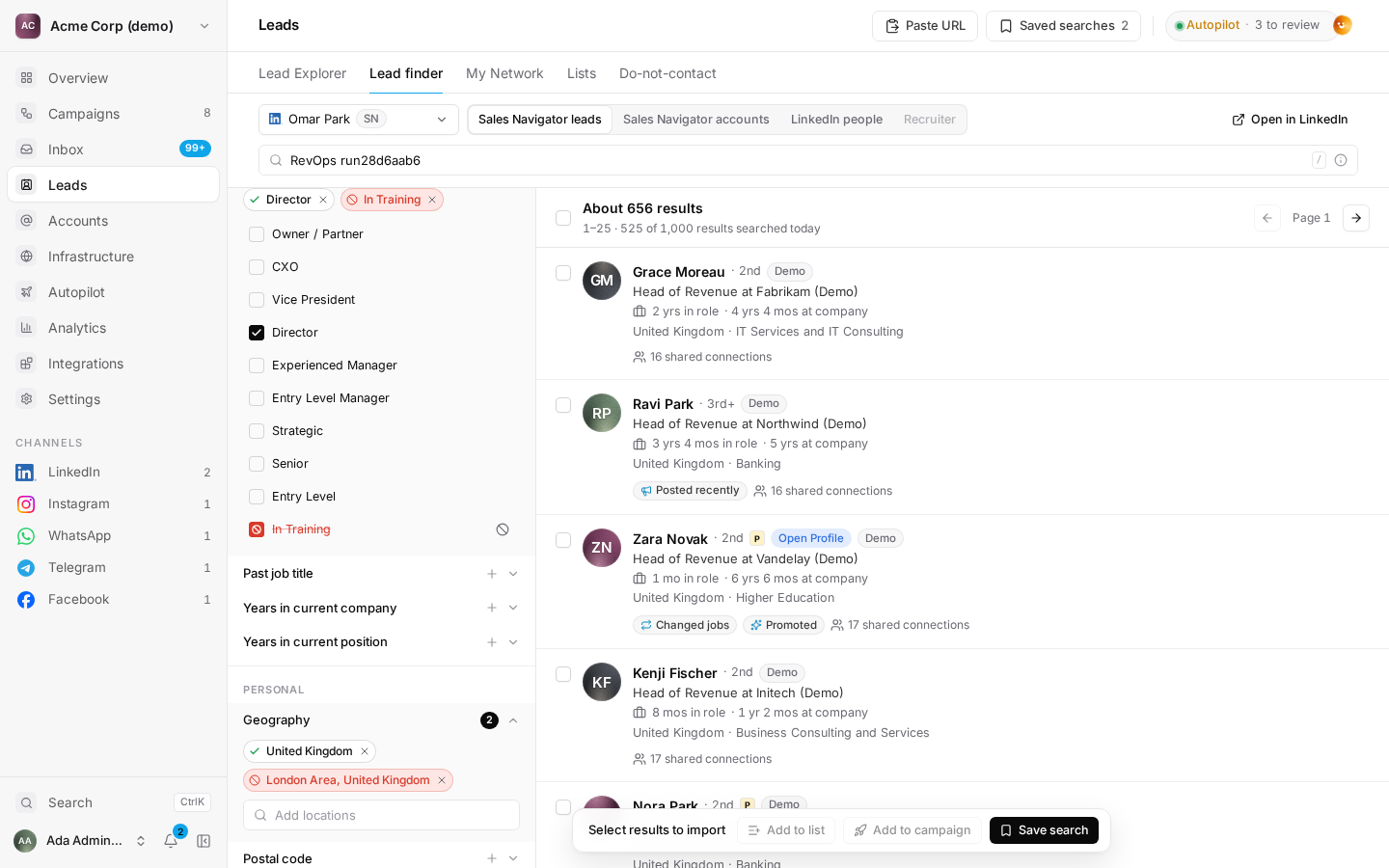
Choose the account and what to search
Every search runs on one of your connected LinkedIn accounts, and LinkedIn shows results for that account's licence:
| Source | Licence the account needs | Results per search |
|---|---|---|
| Sales Navigator leads | Sales Navigator | up to 2,500 |
| Sales Navigator accounts (companies) | Sales Navigator | up to 1,000 |
| LinkedIn people | any LinkedIn account | up to 1,000; 250 on a free account |
| Recruiter candidates | Recruiter | up to 1,000 |
The account picker shows each account's licences and how much of today's search budget it has used. A source that none of your accounts can run is shown greyed out, with the licence it needs. If an account's plan changed, use Re-sync licences on the Accounts page.
Recruiter seats: LinkedIn allows one active Recruiter session. Searching here with a Recruiter seat may sign its owner out of Recruiter in their browser.
Build the search
Keywords
Type keywords in the search bar above the results, as on LinkedIn. Boolean search works the way LinkedIn defines it:
AND,ORandNOTin capitals:(CEO OR founder) AND SaaS NOT agency- quotes for an exact phrase:
"revenue operations" - parentheses to group terms
LinkedIn ignores braces, brackets and * wildcards, so GraphKit refuses them. Sales Navigator allows at most 15 operators in one search. GraphKit warns you about lowercase and or or, because LinkedIn reads those as ordinary words. Press / to jump to the keyword box.
Filters
The panel on the left is LinkedIn's filter panel. For Sales Navigator leads, the groups are Company, Role, Personal, Buyer intent, Best path in, Recent updates and Workflow, with LinkedIn's filter names in LinkedIn's order. Open a filter to edit it:
- Look-up filters (companies, titles, places, industries, schools, groups, lists) suggest values as you type, like LinkedIn's boxes. Choose Include or Exclude on a suggestion. On the keyboard, Enter includes the highlighted suggestion and Alt+Enter excludes it. Job titles and companies also take typed text: choose Use "…".
- Lists of options (seniority, headcount, years in position, company type) have a tick to include an option and ⊘ to exclude it, where LinkedIn allows exclusions.
- Switches turn on spotlights such as Changed jobs or Posted on LinkedIn.
- Ranges (Recruiter years of experience, account headcount growth) take a minimum and a maximum.
Chosen values appear as chips under the filter, even when it is closed. A chip with a tick (✓) includes people who match. A red chip with ⊘ excludes them. Click the mark to switch between include and exclude, and click × to remove the value. Clear all empties the search.
LinkedIn filters that GraphKit can't run are still listed, greyed out, with the reason. For example, TeamLink and People in CRM need LinkedIn's own systems, and some filters aren't available through the API GraphKit uses. The full list is in the filter reference below.
Paste a LinkedIn search
Choose Paste URL and paste the address of any of these:
- a LinkedIn people search
- a Sales Navigator lead or account search
- a Sales Navigator lead list
- a Recruiter search
GraphKit reads the filters into the panel, so you can keep editing the search.
- If the URL has a filter GraphKit can't show, GraphKit names it. You can then run the exact URL, or use the other filters.
- Recruiter keeps its filters on LinkedIn's side, so a Recruiter URL always runs exactly as it is.
Open in LinkedIn works the other way round: it opens the same search on LinkedIn or Sales Navigator. If a filter can't be carried in the address, GraphKit tells you which one.
Read the results
The header shows LinkedIn's count ("About 12,400 results") and which rows you're looking at. LinkedIn only shows the first 2,500 results of a search (1,000 for most other sources), even when it reports more. To reach more people, narrow the search, for example by location or seniority, and run it in parts.
Each row shows what LinkedIn shows:
- name and connection degree
- headline
- current role and company, with time in the role
- location and industry
- Premium and Open Profile badges
- spotlights such as Changed jobs, Posted recently or Open to work
- shared connections
GraphKit adds its own marks:
- In GraphKit: the person is already a lead. Click to open the lead.
- In campaign: a campaign has them open.
- Do not contact: they are on your do-not-contact list. They can't be selected.
Move between pages with Previous and Next. Pages are fetched one at a time, a few seconds apart for each account, so browsing doesn't hit LinkedIn harder than a person would.
Add people to a list or campaign
- Tick rows, or tick the header box to select the page. Selections carry over when you change page. After you select a whole page, Select all picks every result up to LinkedIn's limit.
- Choose Add to list or Add to campaign in the bar at the bottom.
- Pick the list or campaign. Tick Only people not in GraphKit yet to skip anyone who is already a lead.
Selected rows are imported straight away. Select all runs in the background and pages through the search with the same pacing as other LinkedIn imports. Either way:
- People who are already leads are updated, never duplicated.
- People on the do-not-contact list are skipped.
- A campaign applies its usual rules: no duplicates, nobody suppressed, and nobody already open in another campaign unless the campaign allows it.
The report shows new leads, people updated, people skipped and how many joined the campaign. Leads from the lead finder are verified LinkedIn leads, and their source is the product you searched.
For Sales Navigator accounts, Save companies keeps the companies for reference and CSV export. Campaigns reach people, so companies can't be enrolled. To reach the people at those companies, choose Find leads at these accounts: it starts a lead search filtered to those companies.
Saved searches
Choose Save search to keep a search with its filters and account. In Saved searches you can:
- Find new leads: re-runs the search and imports only people it hasn't returned before and who aren't leads yet, up to the search's New leads per run.
- Schedule it to run every day or every week. Each run sends new leads to the list or campaign you chose. Scheduled runs start at a slightly different time each day, never at a fixed minute.
- Open in the finder to change it, or Open in LinkedIn.
Each run shows what it found: how many people were new, and how many it skipped because they were already in GraphKit or seen before.
GraphKit Autopilot can run your saved searches too. It finds new leads the same way, within the same limits.
Limits and safety
- Daily search budget. Every page of results counts against the account's daily Searches limit, which counts results, not requests. The default is 1,000 results a day, the provider's guidance for a standard account. You can raise it to 2,500 for a Sales Navigator or Recruiter seat under the account's limits. When the budget is used, the search tells you so, and background imports wait until midnight in the account's timezone.
- LinkedIn's commercial use limit. Free LinkedIn accounts get a monthly allowance of people searches. LinkedIn doesn't publish the number, and it resets on the 1st of each month. Premium Business and Sales Navigator raise it. Use those accounts for heavy searching.
- LinkedIn's own pacing. If LinkedIn asks an account to slow down, imports pause and continue later by themselves.
- GraphKit uses its provider's documented search API in the normal way. It doesn't disguise automation or try to avoid LinkedIn's detection.
Filter reference
Filters marked unavailable are LinkedIn filters that GraphKit's provider can't set, or that only work inside LinkedIn (CRM sync, TeamLink). The filter panel shows the reason next to each one.
| Source | Filters you can use | Shown but unavailable |
|---|---|---|
| Sales Navigator leads | Current company, Past company, Company headcount, Company type, Company headquarters location, Function, Current job title, Seniority level, Past job title, Years in current company, Years in current position, Geography (region or postal code with radius), Industry, First name, Last name, Profile language, Years of experience, Groups, School, Following your company, Viewed your profile recently, Connection, Connections of, Past colleague, Shared experiences, Changed jobs, Posted on LinkedIn, Persona, Account lists, Lead lists, People you interacted with, Saved leads and accounts | Account has buyer intent, Category interest, Viewed your Company Page recently, TeamLink connections of, Past customer, Mentioned in news, People in CRM |
| Sales Navigator accounts | Annual revenue, Company headcount, Company headcount growth, Headquarters location, Industry, Number of followers, Fortune, Job opportunities, Recent activities, Connection, Saved accounts, Account lists | Department headcount, Department headcount growth, Buyer intent, Companies in CRM |
| LinkedIn people | Degree of connections, Locations, Current company, Connections of, Followers of, Past company, School, Industry, Profile language, Open to volunteering, Service categories, and the keyword fields First name, Last name, Title, Company and School | Actively hiring (Premium) |
| Recruiter | Job titles (current and past), Locations, Workplace types, Skills and assessments, Current and past companies, Schools, Industries, Seniority, Network relationships, Job functions, Years of experience, Years in current company, Years in current position, Company sizes, Spotlights, Hide previously viewed, Profile languages, Groups, First names, Last names | Year of graduation, Employment type, Spoken languages, Candidate sources, Degrees, Fields of study, Military veterans, Recruiting activity, Projects, Notes, Tags, Past applicants |