Leads and lists
How leads, identities and deduplication work, how to import from CSV, LinkedIn searches and post engagers, and how to organise leads in lists.
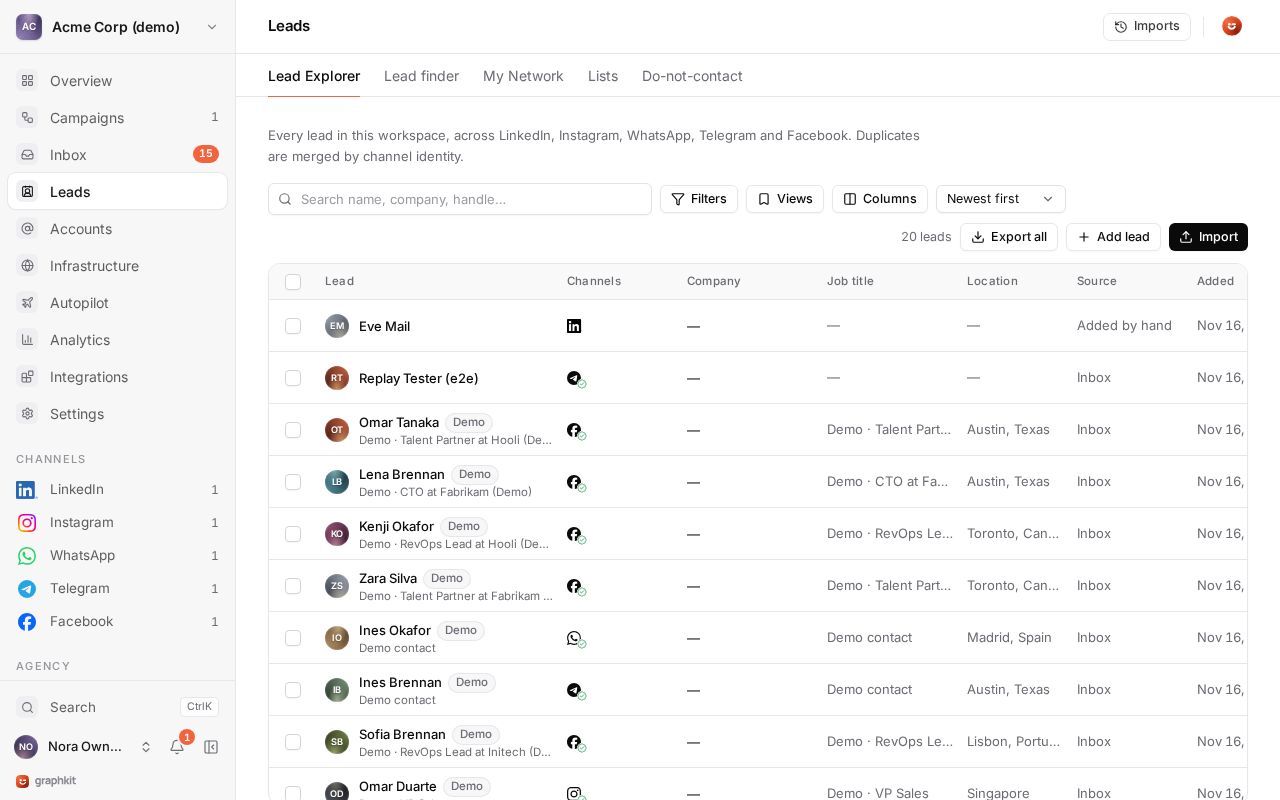
A lead is one person in one workspace. It holds one or more channel identities (a LinkedIn profile, an Instagram account, a WhatsApp number, a Telegram account, a Facebook profile) plus fields such as name, company, job title, email and your own custom fields.
Identities and deduplication
GraphKit normalises every identity before it stores it, so different spellings of the same person match:
| You enter | Stored as |
|---|---|
https://uk.linkedin.com/in/Jane-Doe/ or jane-doe | the LinkedIn profile jane-doe |
+44 7700 900123 | the phone number +447700900123 |
Within a workspace, one identity belongs to one lead. When a record arrives (from an import, the API or the inbox), GraphKit matches it on every identity it carries:
| Identities already in the workspace | Result |
|---|---|
| None | A new lead is created with all of them. |
| Some, all on one lead | The record merges into that lead, and new identities are added to it. |
| Spread over several leads | The record merges into the lead that owns its first identity. The other identities stay where they are and are reported as conflicts. Leads are never merged automatically. |
Each record ends as created, updated (a field was filled or an identity added), duplicate (nothing changed) or invalid (rejected, with the reason).
Merge rules
- A field someone edited by hand is never changed by an import, whatever the source. Clearing a field by hand also counts as an edit.
- CSV imports, manual adds and the API only fill fields that are empty.
- LinkedIn sources (searches, post engagers, My Network) also refresh fields nobody edited, such as a new job title.
- An empty value never clears a field.
Verified identities
Campaigns only contact a lead on a channel where its identity is verified: confirmed to exist by the network (search, connections, post engagers, a conversation) or by a person. A CSV import can mark its identities verified with The identities in this file are correct, and you can tick Verified on an identity in the lead drawer.
Import leads
Open Lead Explorer and choose Import leads. Every import runs in the background and shows its progress, its counts (created, updated, duplicates, invalid) and any error. You can cancel an import; leads already imported stay. Each import can put its leads into an existing list or a new one.
CSV
- Upload a file of up to 50 MB and 200,000 rows. UTF-8 (with or without a byte order mark) and UTF-16 are read, with comma, semicolon, tab or pipe separators, detected automatically or read from an Excel
sep=line. - Check the mapping. GraphKit suggests a target for every column from its header. At least one column must be an identity (LinkedIn URL, Instagram, WhatsApp phone, Telegram, Facebook). Each field can be mapped once. Columns with unknown headers become custom fields, named in lowercase snake case (
Industry Typebecomesindustry_type). - Choose the options:
- The identities in this file are correct marks every identity in the file as verified.
- Imported with consent, per channel, records that the people in the file agreed to be contacted there, for example "these contacts opted in to WhatsApp messages". See Consent and opt-outs.
- Confirm.
A row without any valid identity is rejected. A row with one invalid identity cell (for example a WhatsApp number without a country code) is still imported with its other identities. Both are listed in the import's downloadable error file, with the row and the problem.
LinkedIn search
Paste a people-search URL from LinkedIn, Sales Navigator or Recruiter, choose an account that has that product, and set how many leads to import (up to 2,500). GraphKit reads the results 25 at a time with a short random pause between pages, as a person would. Leads from a search are verified.
Post engagers
Paste a LinkedIn post link and choose reactions, comments or both, up to 10,000 people. Event attendees, group members and Instagram post engagers cannot be imported, because the networks offer no way to list them.
One lead at a time
Choose Add a lead in Lead Explorer, or use the API from your CRM or forms. The API follows the same matching and merge rules.
Lead Explorer
Lead Explorer lists every lead in the workspace with filters (list, channel, source, campaign, suppressed, custom fields and more), sorting and an exact total. Save a filter and its columns as a view to come back to it.
Bulk actions work on a selection or on every lead matching the filter (up to 50,000): add to a list, remove from a list, suppress or delete.
Export the current filter to CSV with every standard field, one column per channel and per custom field, the source and the suppressed flag. Cells that a spreadsheet could run as a formula are prefixed with '. Exports need permission to import leads, so viewers cannot bulk-extract data, and every export is audited.
Lists
Lists group leads for campaigns. A lead can be in any number of lists.
- Create a list from an import, from Lead Explorer, or with New list….
- Combine 2 to 20 lists into a new one: merge (everyone in any of them), intersect (only people in all of them) or subtract (the first list minus the others).
- Delete a list to remove the grouping. The leads stay. A list that a campaign uses cannot be deleted until the campaign stops using it.
Adding a list to a campaign enrolls its members when the campaign launches. See Campaigns.
Connect a Facebook profile with its Pages, use the Page inboxes, and message people who already have a relationship with you.
Find leads on LinkedIn
Search LinkedIn, Sales Navigator and Recruiter from GraphKit with LinkedIn's own filters, see who is already in GraphKit, import the right people into a list or campaign, and save searches that find new leads by themselves.